Lightroom to Instagram: the four ways to get your photos there, compared
Lightroom Classic has no Instagram button, so there are four ways from Lightroom to Instagram: export the photos and post them from your phone, export them and post from instagram.com on your computer, sync a collection to Lightroom on your phone and share from there, or install a publish-service plug-in that sends them from Lightroom's own Publish Services panel.
The first three all end the same way, with you in the Instagram app or website, uploading and captioning one post at a time. The fourth is the only one where Lightroom does the sending. Here's what each involves, what Adobe and Meta say about it, and the one table that puts them side by side. Last checked 4 November 2026.
“One post, hours of work.”
Can you post to Instagram straight from Lightroom Classic?
Not out of the box. Adobe's page on publishing photos online covers email, Flickr and Adobe Stock; Instagram isn't on it.
What Lightroom Classic does have is the Publish Services panel, which plug-ins can add new destinations to. That's where any "post to Instagram from Lightroom" feature lives. Without one, Lightroom's job ends at a JPEG on your disk.
What are the ways to get photos from Lightroom to Instagram?
Export and post from your phone, export and post from a computer, sync to Lightroom mobile, or use a publish-service plug-in. The first three need you in Instagram for every post; a plug-in sends from inside Lightroom Classic.
| Export, then post from your phone | Export, then post from a computer | Sync to Lightroom on your phone | Publish-service plug-in | |
|---|---|---|---|---|
| What you do for each post | Export, move the files to your phone, open Instagram, pick, crop, caption, post | Export, open instagram.com, upload, caption, post | Add photos to a synced collection, then on your phone: Share, Export as, then post in Instagram | Drag photos into the plug-in's collection and click Publish |
| Do you leave Lightroom Classic? | Yes, for your phone | Yes, for a browser | Yes, for your phone | No |
| Can it be scheduled? | Yes, in the Instagram app: a public account, up to 25 posts a day, up to 30 days ahead | See our scheduling guide | Yes, in the Instagram app, as above | Depends on the plug-in |
| What you need | Any Instagram account | Any Instagram account | Lightroom Classic signed in to sync with your Adobe ID | An Instagram professional account, because plug-ins post through Meta's API |
| How it ends | You upload and caption, one post at a time | You upload and caption, one post at a time | You upload and caption, one post at a time | Lightroom does the sending |
Sources: Adobe's pages on publishing online, syncing Lightroom Classic and exporting in Lightroom mobile; Instagram's scheduling help page; Meta's content publishing guide. All read on 4 November 2026.
How do you export from Lightroom Classic and post on your phone?
Export the photos as JPEGs with an Instagram preset, get them onto your phone, then post them from the Instagram app. It's the route most photographers start with, and it works with any Instagram account.
The settings are their own subject, and we've covered every one of them, with Adobe's and Instagram's sources, in our Lightroom export settings for Instagram guide. Save them as a preset once and this step becomes one click.
Getting the files across is whatever you already use: AirDrop, a shared cloud folder or a cable. Then in Instagram, you pick the photos again, crop again if the shape is off, and write the caption. For one post that's fine. For a week of posts from a wedding, it's the same steps every evening.
Or skip the phone. With WedSchedulePro, one click on Publish in Lightroom sends your photos to your queue, ready to post on the days you choose (Solo plan and up). See how it works →
How do you post from Lightroom to Instagram on a computer?
Export from Lightroom Classic, then upload the files at instagram.com, where you can create a post in the browser. It saves the trip to your phone, though you still upload and caption each post by hand.
Our guide to posting on Instagram from a computer walks through the browser steps and what you can and can't do there. For the shape to export, see our Instagram post size guide.
Can you use Lightroom mobile to get Lightroom Classic photos to Instagram?
Yes: put the photos in a collection that syncs, then export them from Lightroom on your phone and post them in Instagram. Adobe says photos in a synced collection "are automatically available in Lightroom on your desktop, mobile, and web."
The steps, from Adobe's sync help page: click the Sync icon at the top right of Lightroom Classic and choose Start Syncing, then tick Sync With Lightroom when you create a collection (or right-click an existing collection and choose it).
On your phone, Adobe's Lightroom mobile export page gives the path: select the photos, tap Share, then Export as, choose JPG, and set Dimensions and Quality. Adobe notes that the quicker Save copy to device option uses default settings instead, so use Export as if you care about the size. Then post from the Instagram app as usual.
This skips the cable and the AirDrop, but you're still choosing, cropping and captioning on your phone, one post at a time.
What is a Lightroom publish-service plug-in?
It's a plug-in that adds a destination to Lightroom Classic's Publish Services panel, so you send photos by dragging them into a collection and clicking Publish. Adobe's built-in Flickr and Adobe Stock services work the same way.
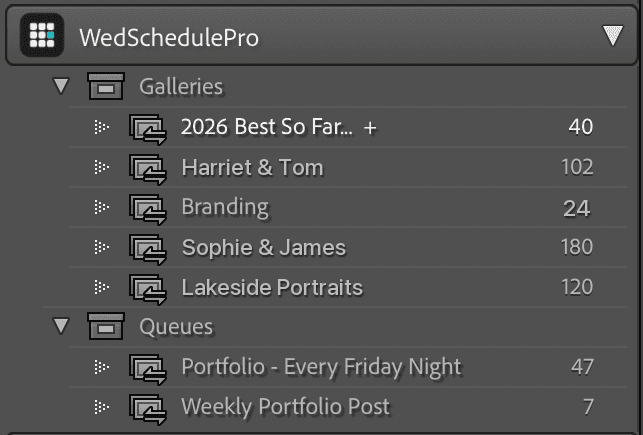
Adobe's publishing page describes the pattern: you set up a connection once, add photos to a publish collection, and Lightroom sorts them into New Photos To Publish and Modified Photos To Republish until you click Publish. A plug-in for Instagram gives you the same panel, collection and button.
The difference is on Instagram's side. A plug-in can only post through Meta's API, and Meta's content publishing guide says that API publishes to Instagram professional accounts. Switching a personal account to a Business or Creator account is free in the Instagram app. Meta's media reference also sets the API's own photo rules: JPEG only, 8 MB at most, and a shape between 4:5 and 1.91:1. That means the taller 3:4 portrait the Instagram app accepts isn't one of them; 4:5 is the tallest.
Which Lightroom plug-ins post to Instagram, and what should you check?
Look for a plug-in that posts through Meta's official API, works with your version of Lightroom Classic, and does what you need with the photos once they leave Lightroom: post now, or hold them for later. Those three decide whether it fits a working week.
We make one, so here's ours, plainly:
- It's a publish service in Lightroom Classic: drag photos into a Queue collection and click Publish.
- It sends photos only. For a film or a Reel, you drag the video into WedSchedulePro on your computer instead.
- It always exports in sRGB, the colour space Meta's media reference says Instagram converts everything else to.
- The photos go to your queue, and the queue posts on the days you choose. The plug-in is free on every plan; the queue is on the Solo plan and up.
- Instagram needs a Business or Creator account, as with any plug-in.
Whichever you try, publish one test photo to a test post first and check it on your phone.
Does the route change how the photo looks on Instagram?
It can change the size Instagram receives: the Instagram app keeps photos up to 1080 pixels wide, while Meta's API accepts up to 1440. Instagram's resolution help page says "If you share a photo at a higher resolution, we size it down to a width of 1080 pixels"; Meta's media reference gives the API's "Maximum width: 1440".
We haven't measured what Instagram then shows people from each route, and Instagram doesn't publish how it compresses, so we won't tell you one looks better. What you control either way is the export: the right shape, in sRGB, at a size that needs no resizing. Our export settings guide has the numbers for both doors.